A tour of the TUI
In this tutorial you walk through the TUI: the weekly grid, the detail view, the add and edit forms, the search and the attendance form. The screenshots come from the demo data of Try it offline; with that setup you can press the same keys and get the same screens.
Without --week the TUI opens the current week.
The weekly grid
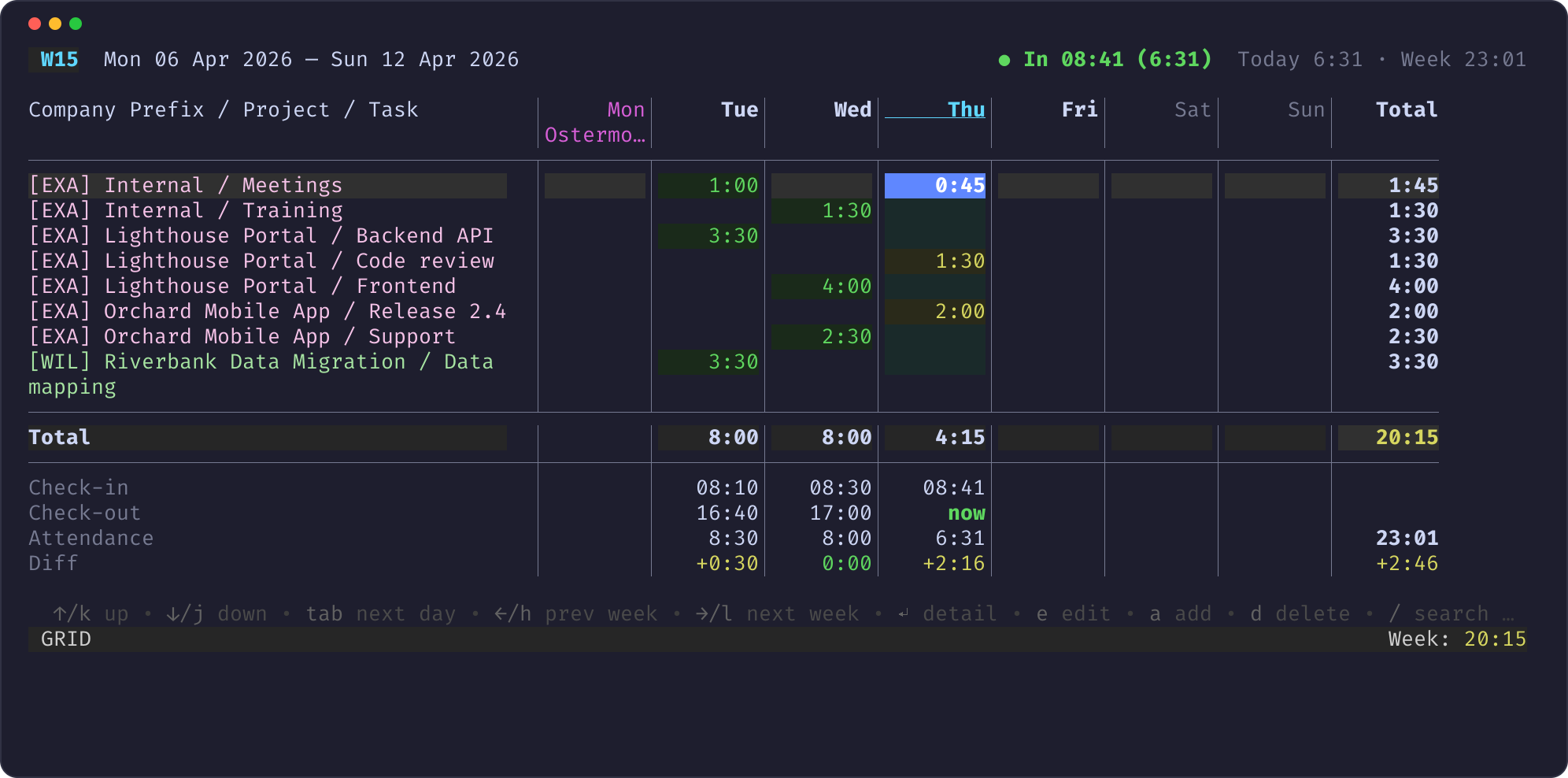
- The header shows the ISO week and its dates, the clock state
(
● In 08:41 (6:31): clocked in since 08:41, for 6:31 hours) and the attendance totals of today and the week. - Each row is a project and task. The prefix (
[EXA]) is the first three letters of the company, coloured per company if you configurecompany_colors. Rows booked last week appear too, so you can book on them again. - Each cell is the hours of one day. Green, yellow and red follow the daily hour limits.
- Monday is a public holiday (Ostermontag): its column is magenta. The holidays are German, per federal state.
- Below the totals, the attendance rows show check-in, check-out,
attendance and the difference to the booked hours, per day. Thursday is
still running (
now); Tuesday has 30 minutes more attendance than bookings.
Move with the arrow keys or H J K L: up and down change the row, Tab and Shift+Tab change the day, Left and Right change the week. The cursor starts on today.
Narrow terminals
The grid adapts to the width of the terminal. At 80 columns the project/task
column is squeezed, and a name that no longer fits is shortened in the middle
([EXA] …pha: Design), so rows that start alike stay distinct. The detail
view shows the full name. Below 68 columns the TUI shows a "terminal too
narrow" notice instead of a broken grid; widen the window and it comes back.
Press H once to see the previous week, with Good Friday as a holiday:
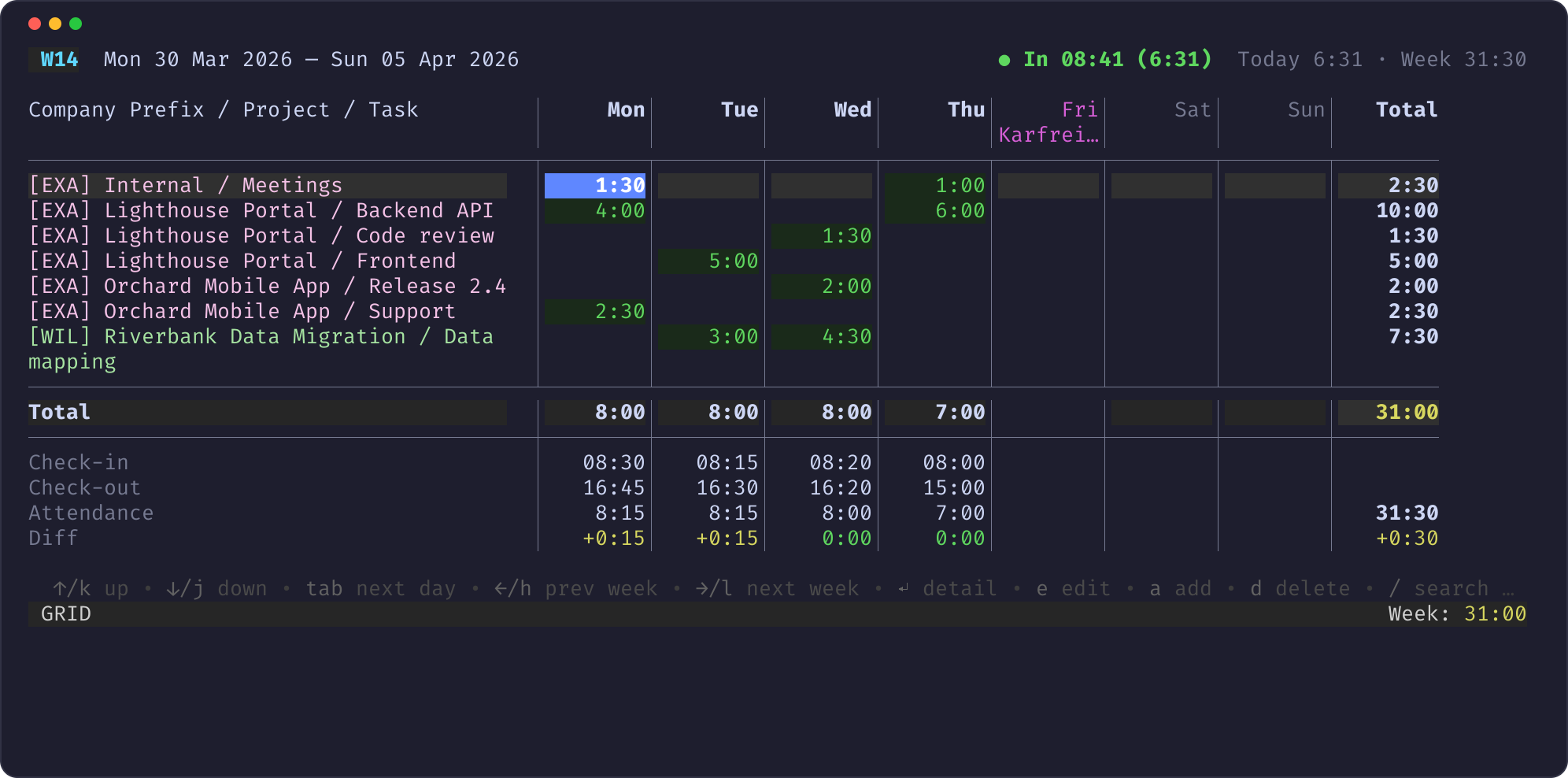
Press L to come back.
The detail view
Put the cursor on the cell Internal / Meetings on Thursday and press Enter:
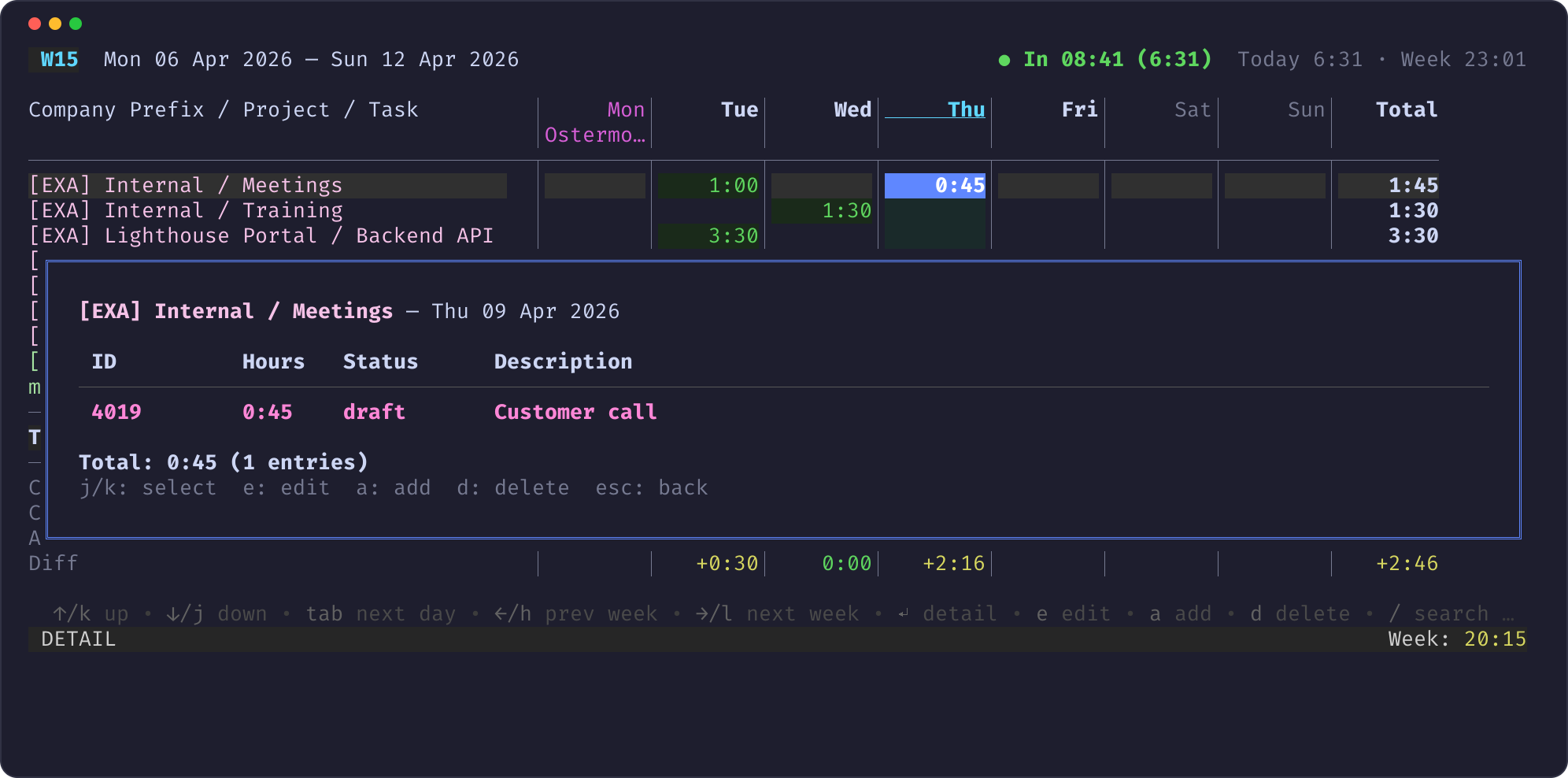
The detail view lists every entry of that cell with its ID, hours, status and description. J and K select an entry.
Edit an entry
In the detail view press E:
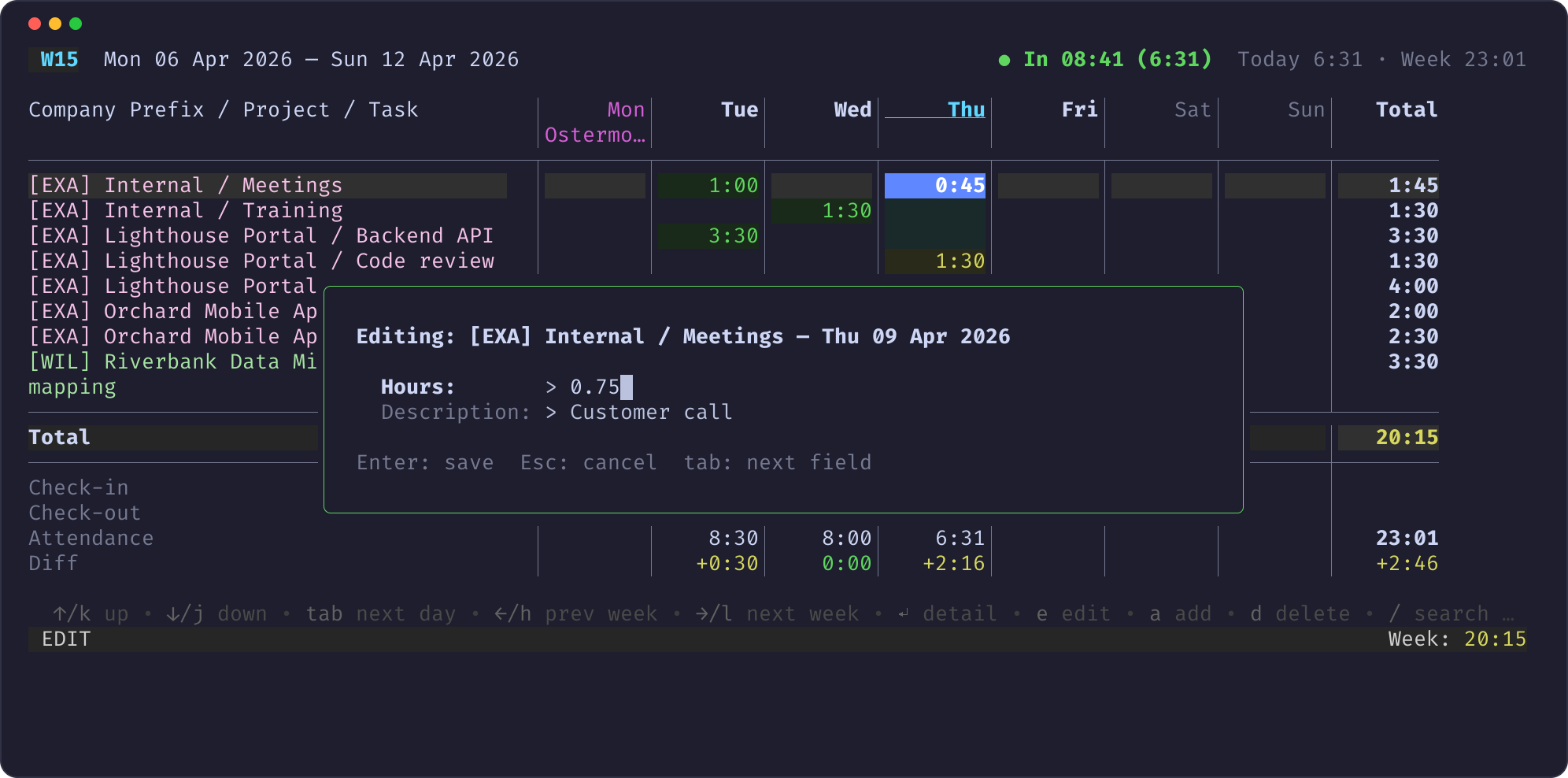
Change the hours (0:45, 0.75) or the description. Tab switches the
field, Enter saves, Esc cancels. The grid reloads from Odoo after
saving.
Add an entry
In the detail view press A instead:
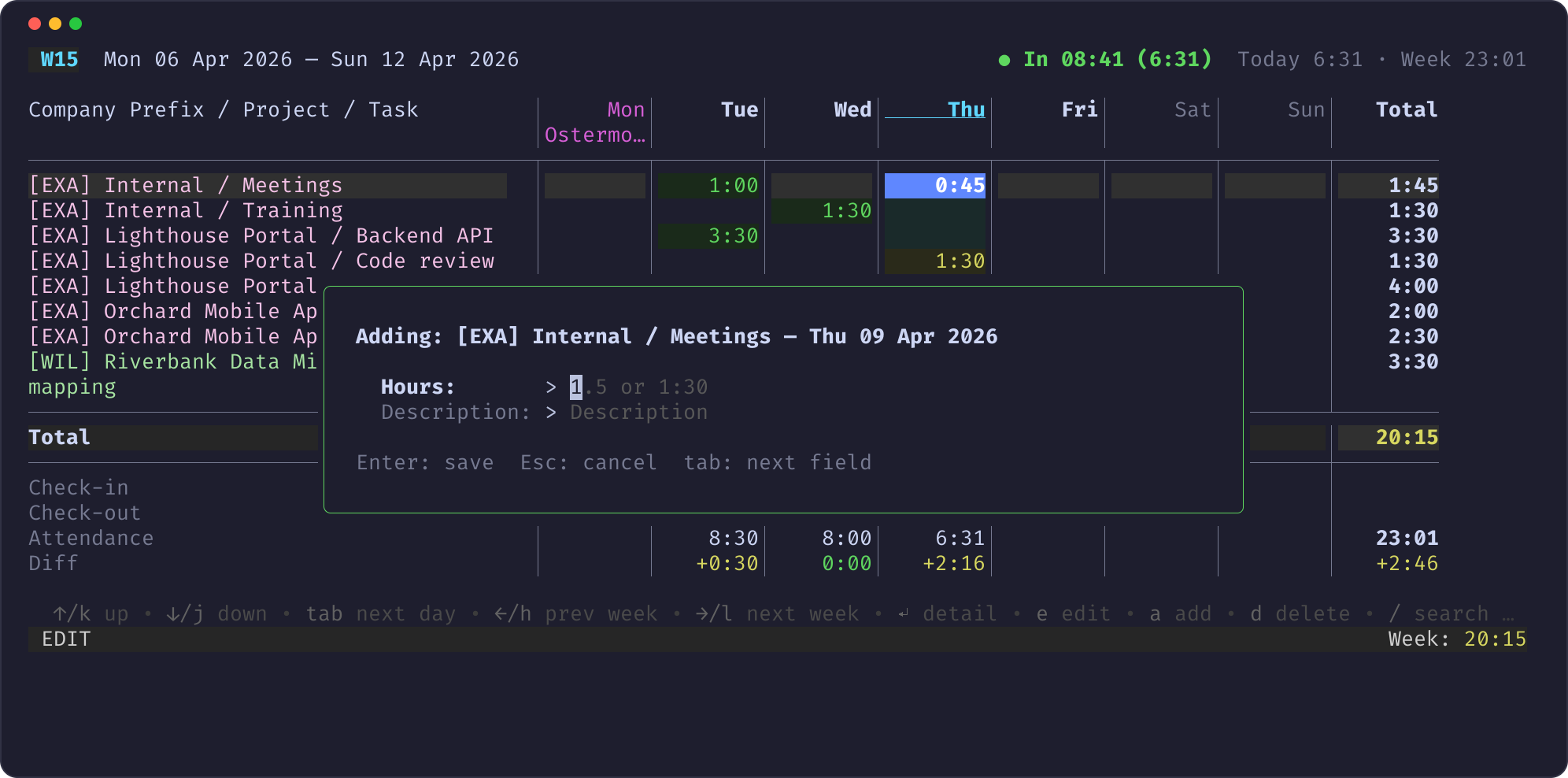
The new entry gets the project, task and day of the selected cell. D in the detail view deletes the selected entry, without asking first.
Add a row with search
To book on a project or task that has no row yet, press / in the grid and type:
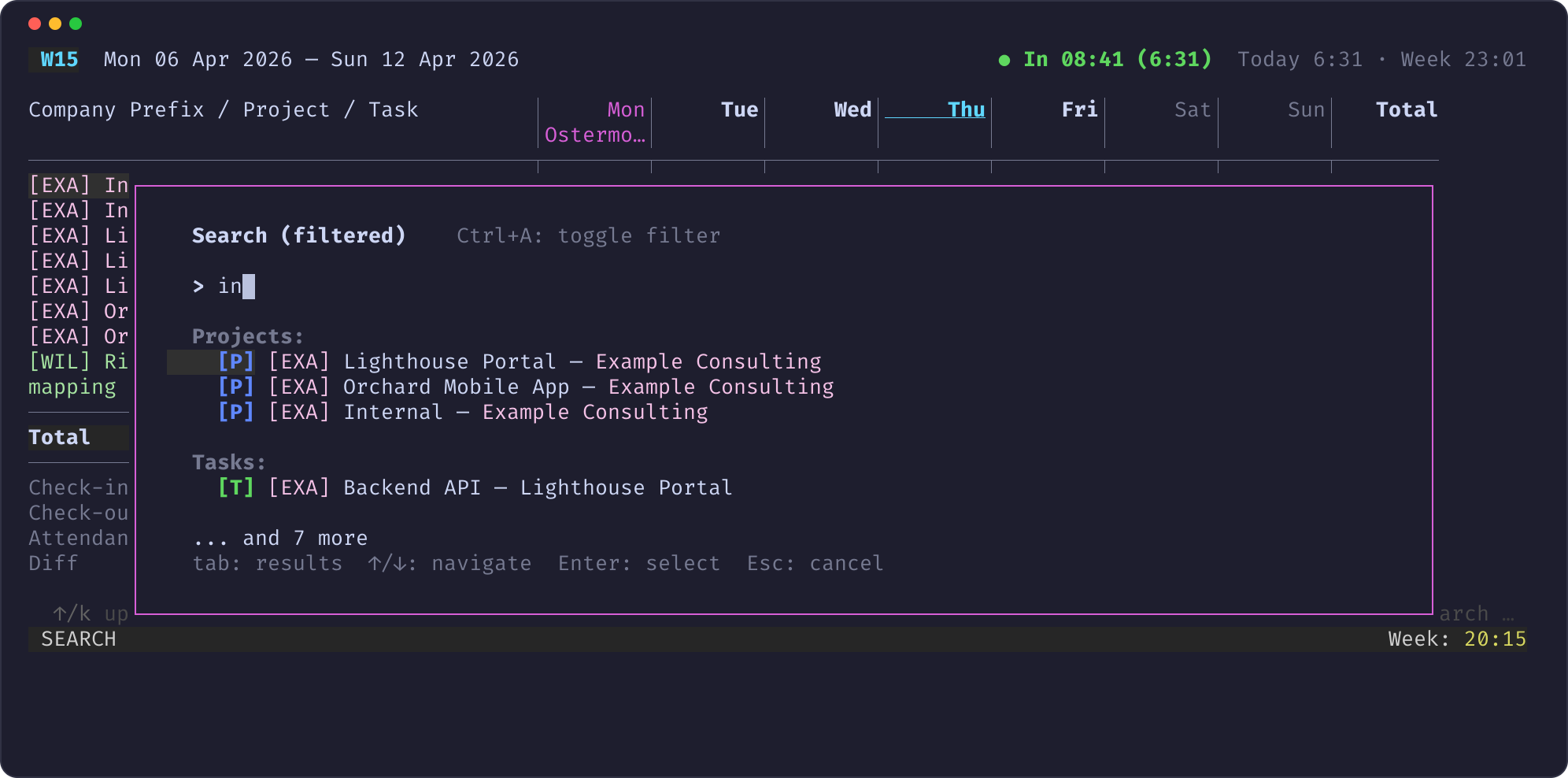
The list filters as you type. Tab moves the focus to the list, Enter adds the selected project or task as a new row. Ctrl+A toggles the filters from your config.
Fix the attendance
Press T on any day to edit its attendance record:
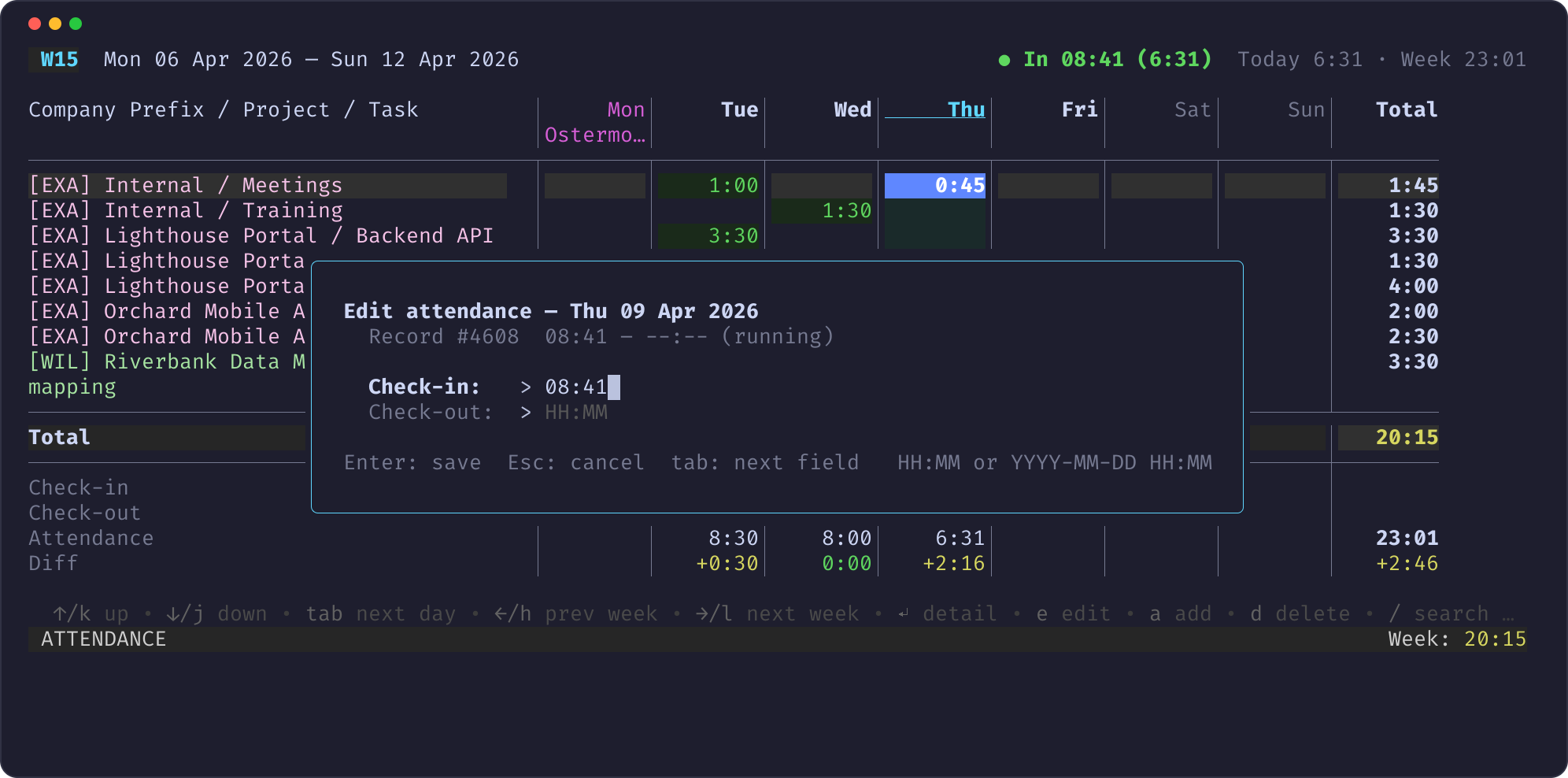
Today has one running record: the check-out is empty. Fill it in to close the
record, or change the check-in. Times are HH:MM, or YYYY-MM-DD HH:MM for an
overnight shift. This writes hr.attendance directly and needs extra rights;
see Clock in and out.
C in the grid clocks you in or out, right now.
Help
Press ? for every key binding, grouped by view:
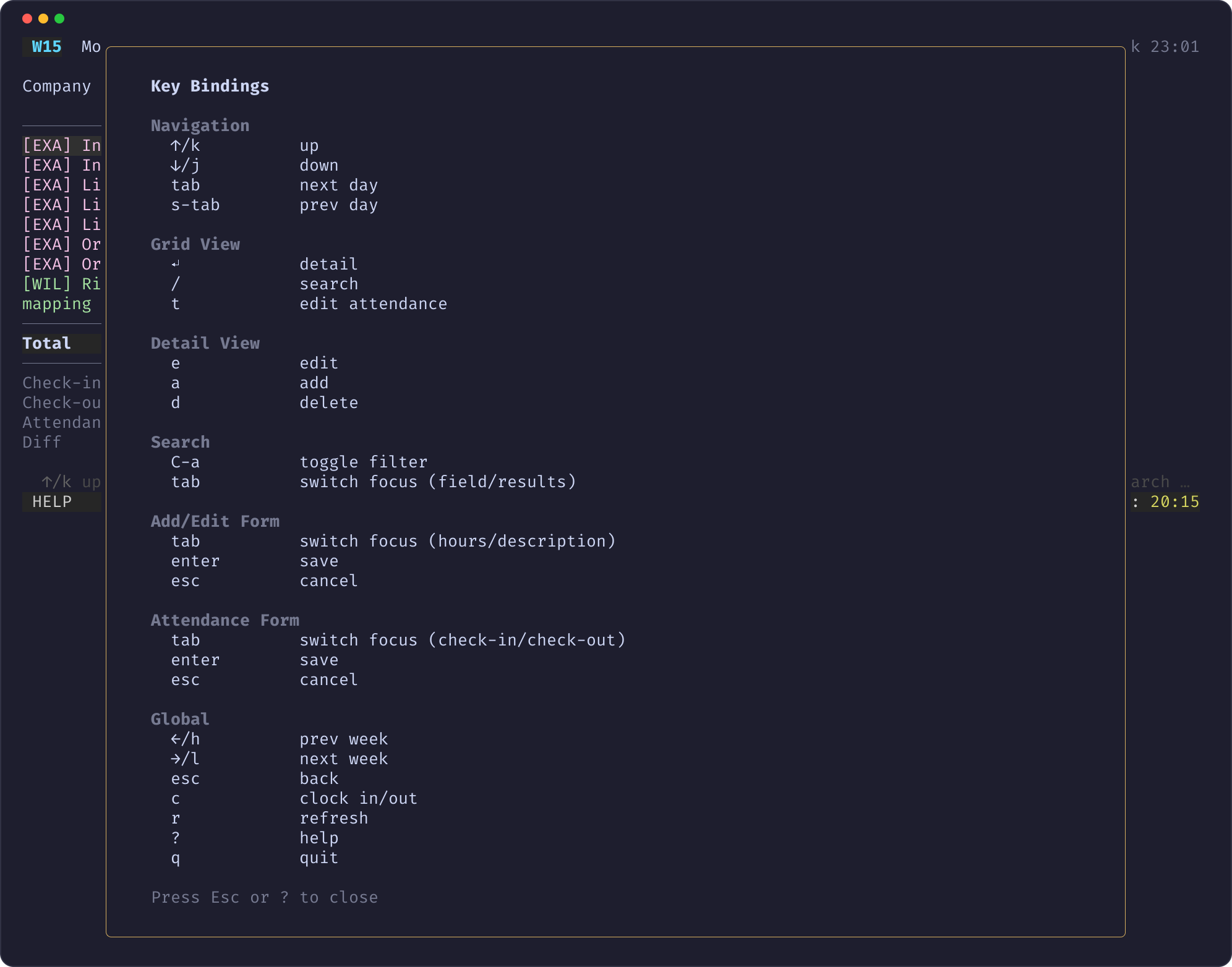
Esc closes it, Q quits the TUI.
Next
- All keys and how to rebind them: TUI keys and views.
- Colours, hour limits and holidays: Customise the TUI.